Zones
In this section of the plugin you will be able to manage, edit and add new zones for your banner ads. You will be able to add multiple ads to a zone, and use the zone shortcode to display all banners in that particular zone.
Banners>Zones
Manage Zones

1. Add New
Clicking this button will take you to ‘Save a Zone’ page where you can create a new Zone. New zones added will show up on this ‘Manage Zones’ screen after they are added.
2. Bulk Actions
These bulk actions allow you to select multiple zones from the table using the checkboxes and then apply a bulk action on the selected records.
3. Search Zones
Quickly search the database for Zones by typing a word or phrase and then clicking the ‘Search Zones’ button.
4. Ad Actions
For each of the actions like Edit/Delete/View/Order Ads, just make the action text itself bold. Select one of these actions to edit, delete, view or Order ads.
Order ads per Zone

With the order ads action underneath each zone, you will be able to order ads within that specific zone. You can order ads random, in a specific order or drop and drag them in a custom order.
5. Shortcode
Use this shortcode of the zone on any page/post if you wish to display the ads in this zone. To show all ads in a zone, use [ banners_zone count="all"... ]shortcode.
Save a Zone
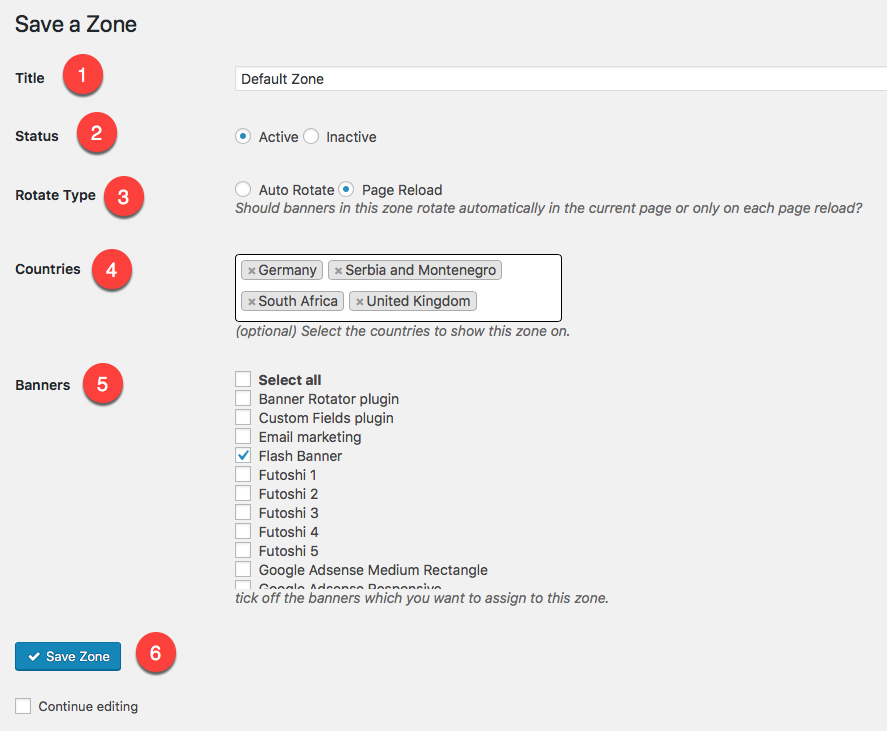
click to enlarge
1. Title
Insert the title of the zone in this field
2. Status
Make this zone active or inactive by selecting one of these radio buttons.
3. Rotate Type
Select the rotate type. Auto Rotate (Ajax) will periodically rotate ads in this zone with Ajax and Page Reload will only rotate banners in this zone per page reload.
4. Countries
Select the countries to show this zone on. This setting is optional.
5. Banners
Select the banners that you want to display within this zone.
6. Save Zone
Save the zone settings
Website & Email Hosting
Get the best website & email hosting for speed, security, and peace of mind. No restrictions. Freedom to do what you need in order to run your business.